Getting Started
CADshift Documentation
Welcome to the CADshift for SOLIDWORKS documentation. Learn how to export DXF and PDF files with advanced features for manufacturing.
DXF Export
Export parts, assemblies, and drawings to DXF with custom file naming.
Layer Configuration
Configure DXF layers for your laser cutter or CAM software.
Sheet Metal
Trim bend lines, detect thin parts, and optimize for laser cutting.
PDF Export
Export drawings to PDF with embedded QR codes and watermarks.
CADshift is a SOLIDWORKS add-in that streamlines your DXF and PDF export workflow. Whether you're exporting sheet metal flat patterns for laser cutting or creating professional drawing packages, CADshift saves time and reduces errors.
Key Features
CADshift provides powerful export capabilities beyond what SOLIDWORKS offers natively.
DXF Export
Export from parts, assemblies, and drawings with full control over the output:
- Custom file naming using tokens like
<MATERIAL>,<THICKNESS>, and<MODEL_TITLE> - Batch export from assemblies and drawing BOMs
- Layer control for different geometry types (profile, bend lines, hidden edges)
- Metadata embedding with part information as text annotations
Sheet Metal Processing
Advanced features specifically for sheet metal manufacturing:
- Bend line trimming - Convert full bend lines to stubs for laser etching
- Laser cutting optimization - Remove intermediate nested contours automatically
- Bounding box export - Add material size rectangles for nesting
- Thin part detection - Export non-sheet metal flat parts
PDF Export
Create professional drawing packages:
- QR code embedding - Add scannable codes with part data
- Watermarks - Brand your drawings or mark draft status
- Multi-sheet support - Different settings per sheet
Getting Started
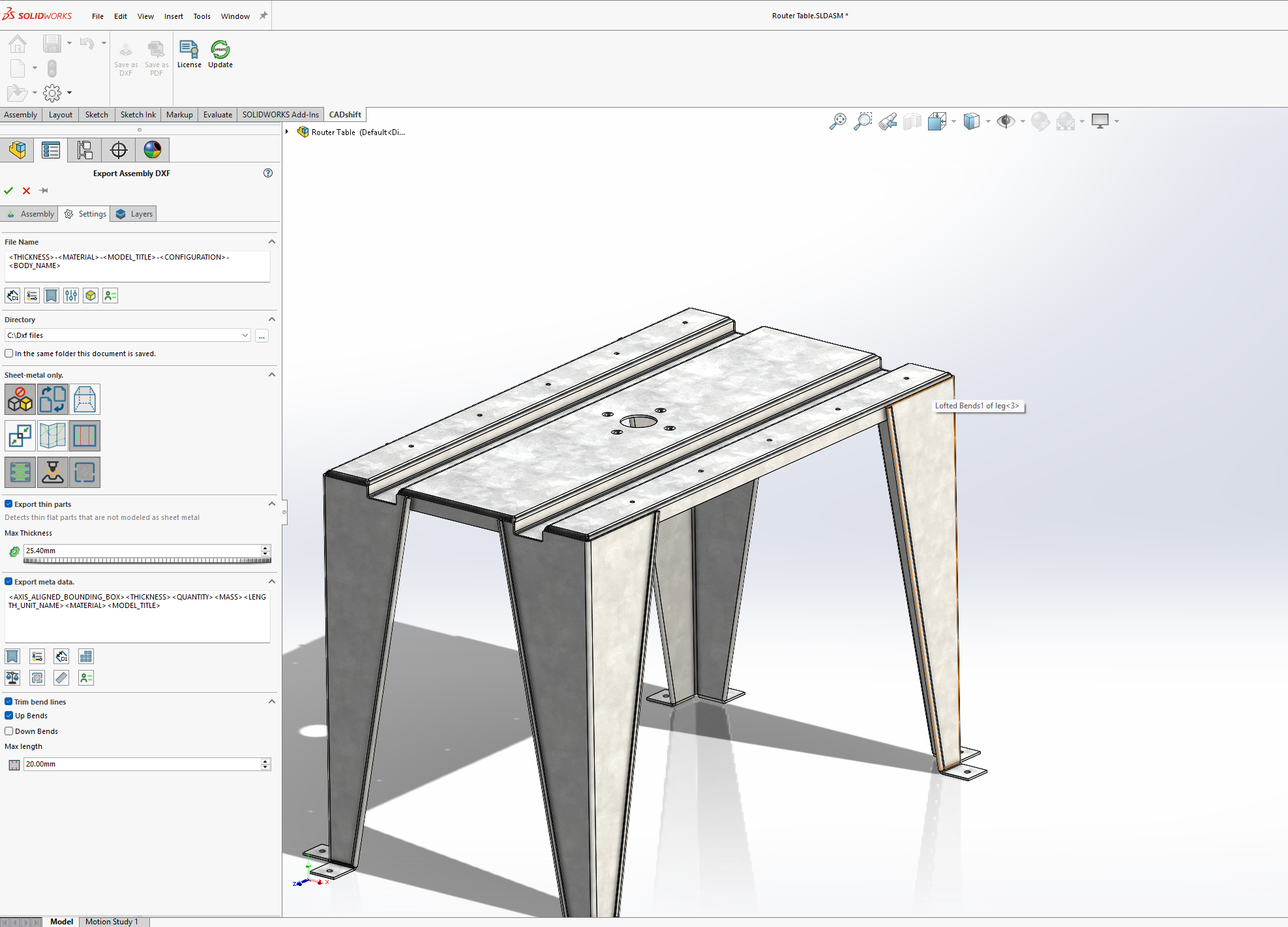
Step 1: Access CADshift
- Open SOLIDWORKS
- Look for the CADshift tab in the Command Manager ribbon
- Click DXF Export or PDF Export to begin
Step 2: Select What to Export
Depending on your document type:
| Document | Selection Options |
|---|---|
| Part | Bodies, faces, or sheet metal flat patterns |
| Assembly | Individual components with flat patterns |
| Drawing | Drawing views or Bill of Materials items |
Step 3: Configure Settings
Use the Settings tab to configure:
- File naming pattern with tokens
- Output directory
- Sheet metal options (bend lines, hidden edges, etc.)
- Advanced features (laser optimization, metadata)
Step 4: Configure Layers
Use the Layers tab to set layer names matching your laser software or CAM system.
Step 5: Export
Click the green checkmark to export. Your DXF files are created with the configured settings.
Document Types
Exporting from Parts
When you open a part document, CADshift can export:
- Sheet metal bodies - Automatically exports the flat pattern
- Solid bodies - Exports the widest face (thin part detection)
- Specific faces - Select exact faces to export
Multi-body Parts
For parts with multiple bodies, each qualifying body is exported as a separate DXF file. Use the <BODY_NAME> token in your file naming pattern to distinguish them.
Exporting from Assemblies
Select components in your assembly to export:
- Sheet metal components export their flat patterns
- Components are processed individually
- Each gets its own DXF with appropriate naming
Exporting from Drawings
Two export modes are available:
- Drawing Views - Export selected views as DXF
- Bill of Materials - Export all parts listed in a BOM
Professional vs Standard Edition
Some features are exclusive to CADshift Professional:
| Feature | Standard | Professional |
|---|---|---|
| Basic DXF export | ✓ | ✓ |
| Custom file naming | ✓ | ✓ |
| Layer configuration | ✓ | ✓ |
| Bounding box export | ✓ | ✓ |
| Metadata export | ✓ | ✓ |
| Trim bend lines | - | ✓ |
| Laser cutting optimization | - | ✓ |
| PDF QR codes | - | ✓ |
Quick Links by Task
I want to...
Set up file naming → Export with Custom Names
Configure layers for my laser → Layer Configuration
Add material size boxes → Bounding Box Export
Embed part info in DXF → Metadata Export
Create bend line stubs → Trim Bend Lines
Export non-sheet metal flat parts → Thin Part Detection
Clean up nested geometry → Laser Cutting Optimization
Add QR codes to PDFs → PDF Export
Getting Help
If you need assistance with CADshift:
- Documentation - Browse this help site for detailed guides
- Support - Contact us through the CADshift website
- Updates - Click the Update button in SOLIDWORKS to check for new versions
Tip
Most settings are remembered between sessions. Configure your preferred options once, and CADshift will use them for all future exports.